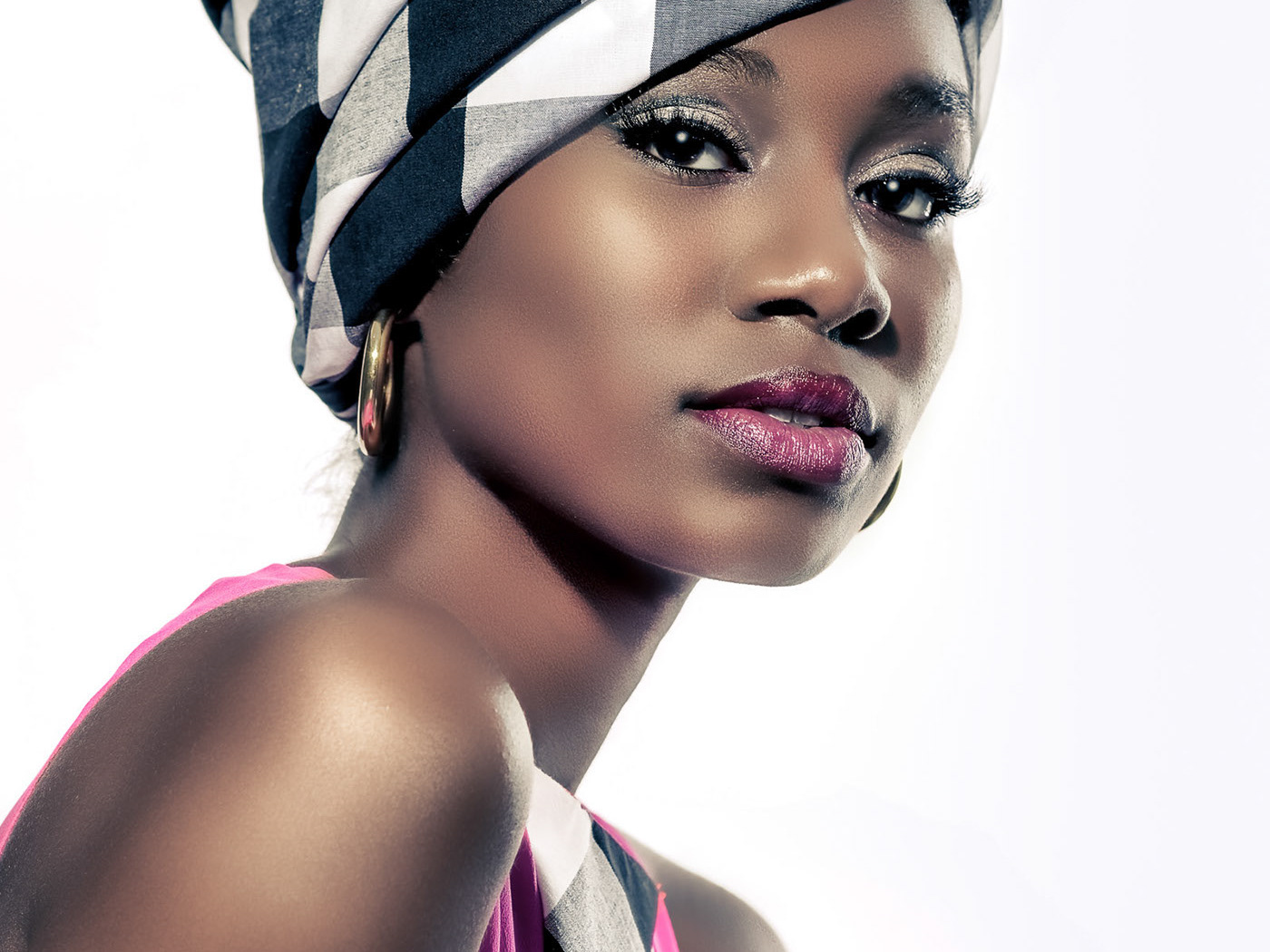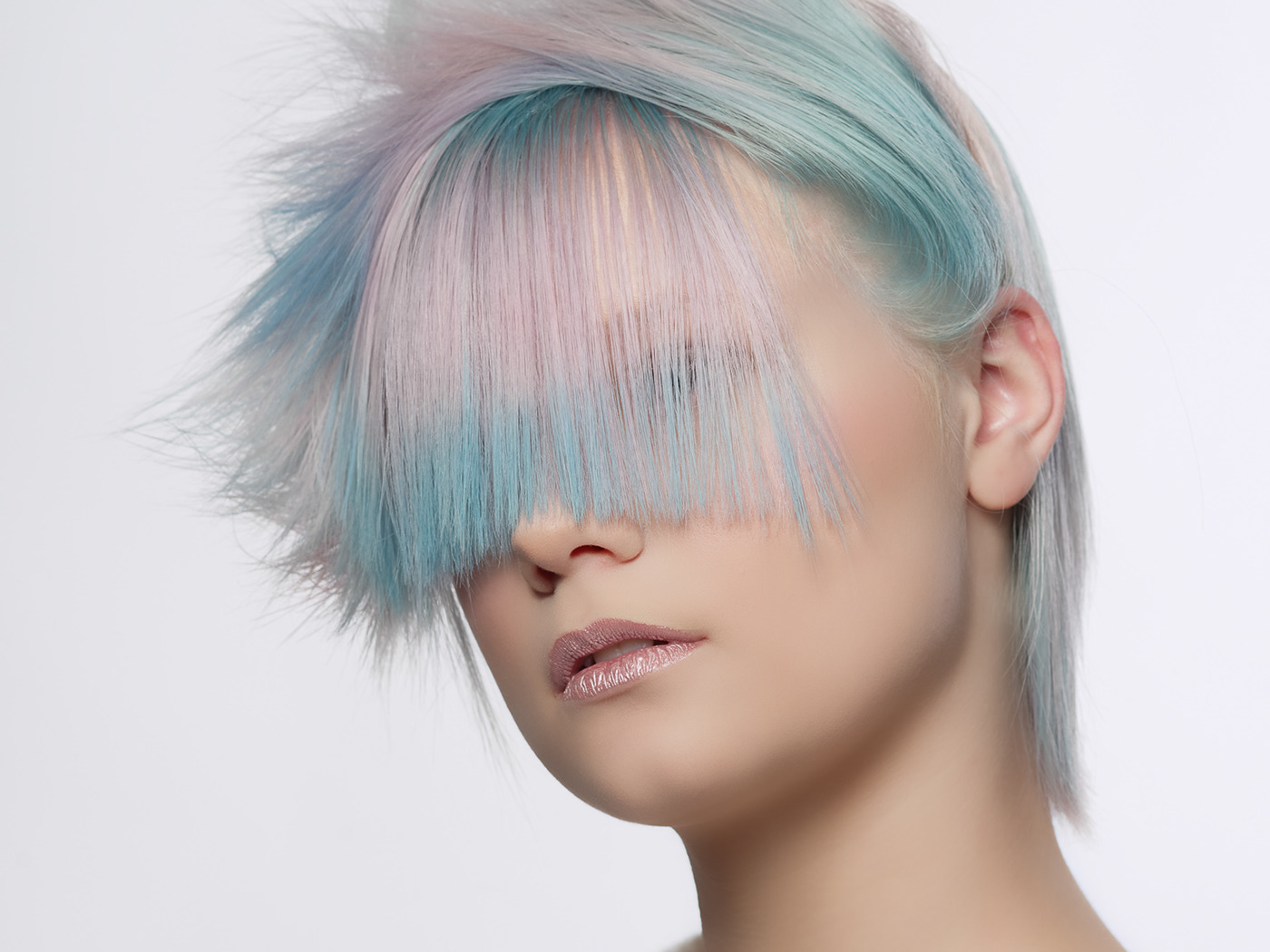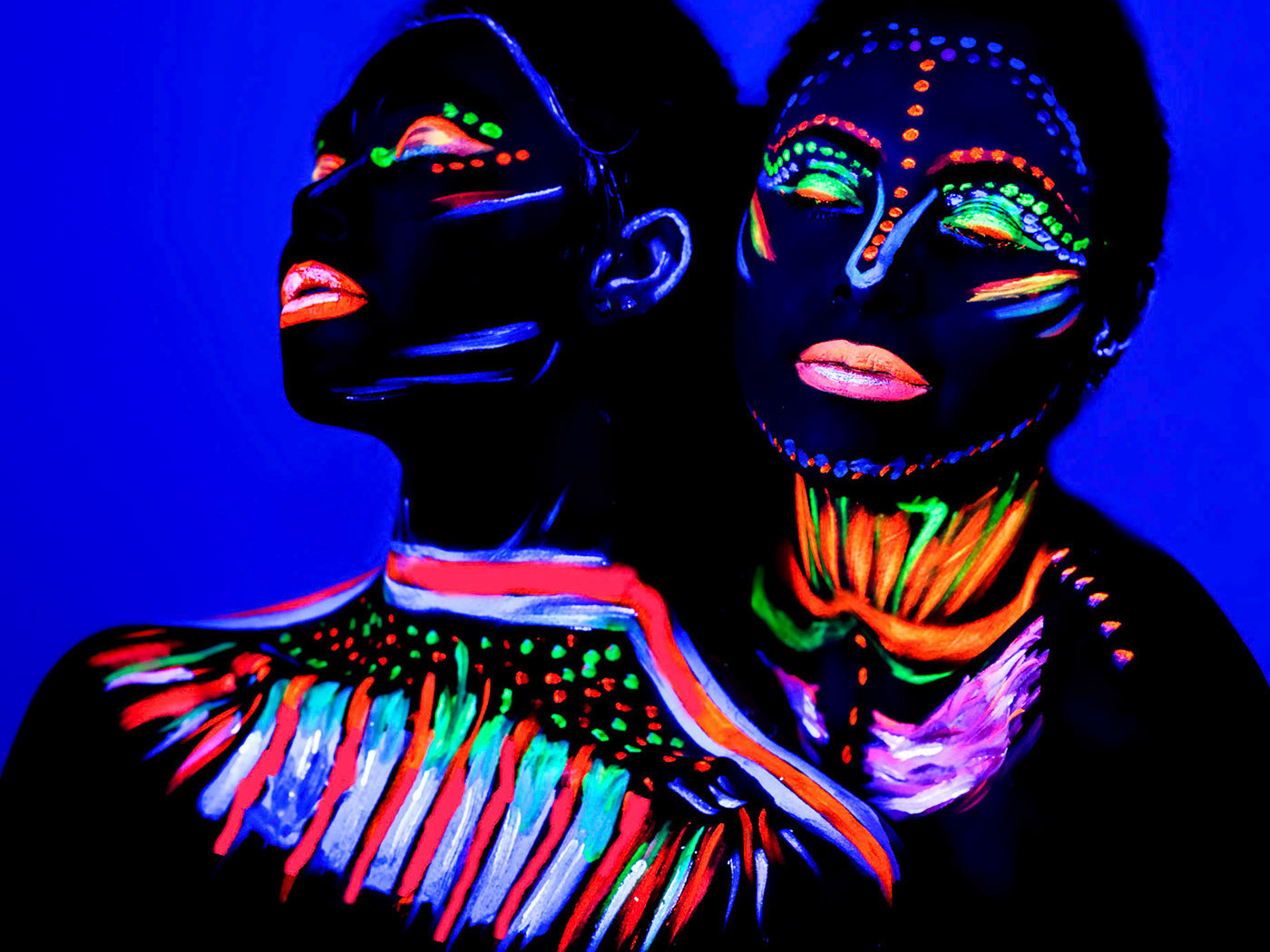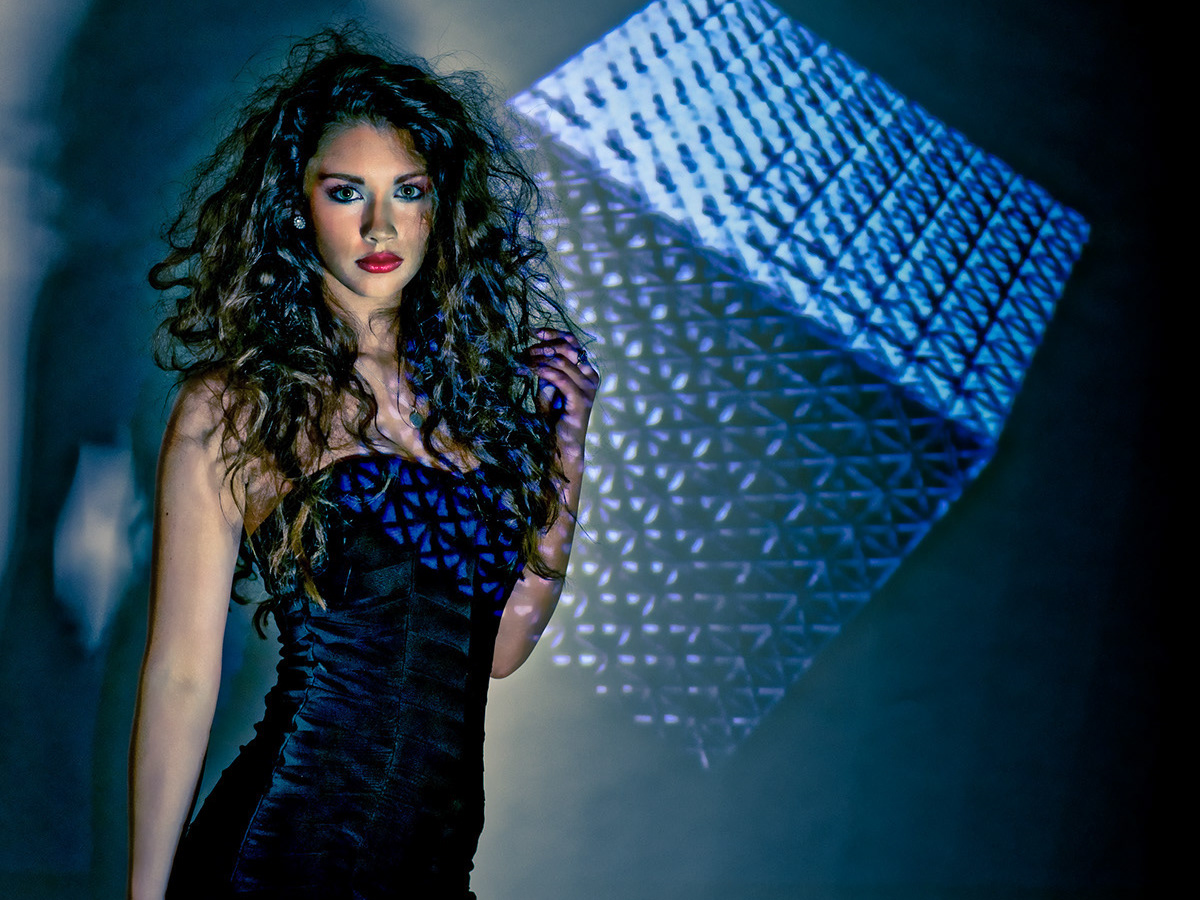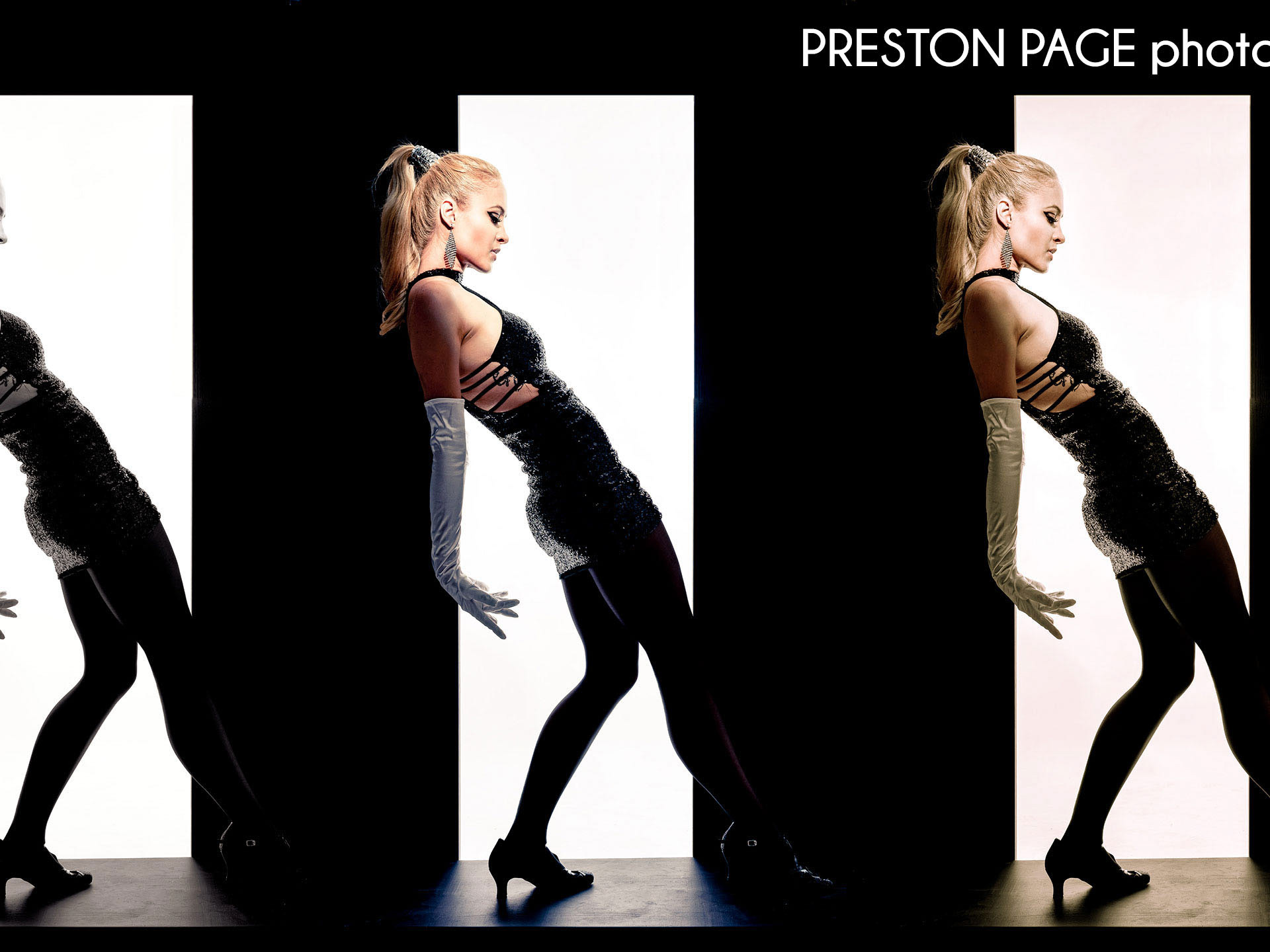
Ola Style 2013 Swimsuit Slideshow

This is a quick project just to get acquainted with Adobe Premiere Pro. Ola style 2013 swimsuits heat up the summer with model Hayley Ridall, hair stylist Zach Taylor, makeup artist Courtney Robinson, assistant to Ola Hawatmeh Logan Greisemer, intern Brenna Clementz and photo stylist Susan Page. Music “Fiyacracka” by Korr-A, Sick Individuals Remix. This is my first time editing with Adobe Premiere. It is pretty amazing.
Capture with a Nikon D800, Nikon AF-S 50mm f1.4 G, tethered using Nikon Camera Control Pro 2. Lighting with 1984 Broncolor Flashman strobes. Processed with Lightroom 4.4, Photoshop CS6 and Premiere Pro.


Nikon Lens Autofocus Calibration


My setup for adjusting autofocus.

Nikon’s How To Fine Tune Autofocus Article is pretty straight forward.  I replaced the book with a focus chart and glued a ruler on a small carpenter’s square to make setting it at 45 degrees easy.

On my Nikon D800, all six of my lenses needed between +5 and +12 adjustment.  I had noticed some back focus before making the adjustments.  Focus is especially critical when shooting with the D800.


Swimsuit Catalog Process Workflow

For a recent swimsuit shoot for Ola Style, with model Hayley Ridall, I decided to try a slightly different fashion workflow.  The main driver for the change is the availability of the Nik Software suite as Photoshop plugins.  Formerly I only the Lightroom Nik plug-ins, which meant that a 250MB TIFF file had to be generated for each step.  In Photoshop, each Nik tool creates a new layer, with the added advantage that the opacity can be fine tuned.

Capture
Nikon D800
Nikon AF-S 50mm f/1.4 G
Broncolor studio strobes
USB 3.0 tethered to a laptop using Nikon Camera Control Pro 2
Full screen review in Nikon View NX2
Exposure: ISO 100 @ 1/60s @ f/9 @ WB Daylight

Safety and Cataloging
Backup day’s shoot (about 1,500 images) to Windows Home Server 2011
Import from the server to Lightroom 4 on a workstation
Catalog, sort and flag.
Create a Lightroom collection just for the picks.

Lightroom Preparation Workflow

For each shot picked to finish, I apply some pre-Photoshop processing.

  1. Adjust color to 5300K based on X-Rite Color Checker Passport.
  2. Apply Lens Correction and CA Correction.  The 50mm is very sharp, but is has a very strange trapezoidal cylindrical anamorphic distortion.  The Lightoom Lens Correction corrects the trapezoid problem, but there is volume anamorphis the still needs help in Photoshop.
  3. Apply the Skin Smoothing brush to legs and tattoo areas.
  4. For medium and log shot, I find that the eyes and teeth whitening Brush tools in Lightroom work very well.  Hayley didn’t need much here, so I reduced the brush flow to 50%.
  5. Launch the image with Lightroom adjustments in Photoshop

Photoshop Processing

The order of most of the steps in Photoshop is very important.

  1. Nik RAW Pre-Sharpener at 50%
  2. Apply Nik Dfine Skin process
  3. Apply Nik Vivenza adjustments, in this case +10 brightness, +10 contrast, +10 shadow detail, -7 structure.
  4. Add auto Levels adjustment, then adjust mid-tones to 105.
  5. Create new merged layer.
  6. Fix cylindrical volume anamorphis problem using a transform formula I developed for the lens in my kit.  In this case, volume is reduced by 2.5%.  In general, the longer the lens and closer it is to the subject, the more correction is required.
  7. Use healing brush to clean up hair, pore-by-pore spotting, correct shine, remove threads, etc.
  8. Use clone tool to remove tattoos (Normal, 100%, soft brush, actual pixels view)
  9. Merge all layers.
  10. Create duplicate layer (Crtl + J), add Gaussian Blur (7 radius), create black mask (Alt + click new layer), then brush blur on the sunglasses, avoiding the eyes.  This removes dust and makes for a smooth sheen.
  11. Merge layers.
  12. Create duplicate layer (Ctrl +J), change blend mode to Soft Light, create black mask (Alt + click new layer), then brush extra contrast on the lips to make more shiny and increase color.
  13. Launch Nik Color Efex Pro 4 and apply a custom recipe that includes Color Contrast, Detail Extractor and Dynamic Skin Softening filters.
  14. Merge all layers.
  15. Save stacked in Lightroom as a TIFF
  16. Make Lightroom virtual copies for conversion to monochrome, “300″ look, etc.
Credits

model: Hayley Ridall
designer: Ola Hawatmeh/Ola Style
hair: Zach Taylor
makeup: Courtney Robinson
producer: Logan Griesemer
photo stylist: Susan Page
intern: Brenna Clementz
photography: © 2013 Preston Page


Nikon AF-S 28mm f1.8 Review

The deserved praise that has been given this lens is somewhat marred by quality control problems.  I think it is worth the effort to find a good copy if you need a sharp, fast, wide angle prime for stills and video.  I returned four of these to Amazon.  The serial numbers were fairly close, so I assumed that Amazon had a bad production run.  I ordered a fifth copy from Adorama, and it meets my expectations.
Specifications
Nikon seems to have thrown quite a bit from their optimization arsenal at this lens, including two aspherical elements, Super Integrated and Nano-Crystal coatings and Rear Focus.  See Nikon’s Web Site for more information.
Performance
The first place I look for a lens assessment is DxO Labs.  Their review called the 28mm f1.8 “a stellar performer”, which is some cause for excitement.  See the full DxO Mark review to see how it compares with other makers, including Zeiss.
My initial performance observations, based on using the lens with a Nikon D800 are in fair agreement with other reviewers:
  • Auto Focus speed fairly good, similar to the Nikon AF-S 50mm f/1.4G
  • The lens is very light weight
  • Bokeh is very nice, especially for a wide angle lens.
  • Compared to its f1.8 siblings, the build quality seems lower
Quality Issues
How do you know if you have a good copy?  Here are the problems I found.
  • Crunchy or gritty feel when the lens is focused manually.  This is an indicator of AF problems.
  • Auto Focus sticks in one place.  Every so often, three copies I tested would just not focus until I switched to manual mode, moved the focus collar a bit, then switched back to AF.
  • One sample was just flat out, obviously fuzzy.
  • Pronounced lateral chromatic aberration.  Some samples were worse than others, but the quality was definitely poor.  See the LCA comparison below.
  • The Nikon gold lettering has a brassy orange matte look compared to any other Nikon lens I’ve seen.
  • Extreme focus shift when stopping down.  Some focus shift can be expected with a fast prime, but it is usually within the increased depth of field when stopped down.  Some tests shooting a brick wall looked less sharp at f5.6 than f1.8 because the focus shifted so much beyond the wall.
I shot the same target in the studio using a Nikon D800 on a tripod, tethered to a laptop using Nikon Camera Control Pro 2, triggered remotely.  Both exposures were ISO 100 @ f/1.8 @ 1/80s.  The lenses were fine tuned for auto focus before shooting the target using the technique recommended by Nikon.  Both copies needed to be adjusted for back focus.
The first image clearly show a problem with LCA for a lens I returned last week.
Here is the same test shot with the sample I’m keeping.  LCA is still present, but looks more like the 10µm measured be DxO labs.  Each 5µm LCA results in 1 pixel of false color for high contrast subjects on the D800.  At 200%, it looks like 1 or 2 pixels.
Vignette
At f1.8, vignette is pronounced…
Vignette is completely gone by f/5.6.
Focus Shift
I need to run quite a few more tests, but it looks like the sample I have has it under control.  Shots like those above, where focus is on the brick wall, had better sharpness on the building behind the wall at f/8.0.

Follow

Get every new post delivered to your Inbox.

Join 115 other followers